
Sage 200:Stock Adjustment
This type of PostTrans import, imports Stock Adjustment, which can be input manually, data from an ODBC connection or imported from CSV file.
- Stock Adjustment Import Features
- Template Example
- Stock Adjustment Batches/Serial Example
- Demo Videos
- Template Structure in detail
- Common Features
- Transaction Options
- Template Tags
- Related Example Templates included with PostTrans
Related Pages
Import Sage 200 Stock Adjustment Features
- Detailed conformation before transaction importation
- Adjust Serial and Bactch number items Pro
- Create Bins/Warehouses on the fly Pro
- Highlighted Validation of codes and data
- Search for Products and other codes etc., using our In-Cell Searching
- Bin columns can be removed to force 'Unspecified' Bin always.
- Add formula, vba or macros to manipulate the imported data
- Cannot Post Sage journal twice. Writes POSTED in row, with transaction Ref generated.
- Can skip Zero values enabling quick entry template to be created
- Chain posting, allows a second template to post, for Back to Back order Pro
- Easily Add your own validation, using the THBefDisplayMessage tag
- Easy importation from CSV file
Example Sage 200 Stock Adjustment in Excel
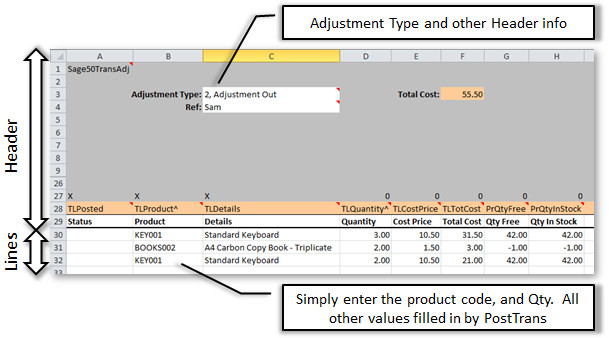
Simple Sage 200 Stock Adjustment in Excel
The above is a screen shot of a Product Adjustment layout which is automatically generated after selecting this type of transaction, many of the fields are optional and are filled in automatically by PostTrans. The user need only enter Product Code and Quantity, all other fields are then filled in by PostTrans.
Indeed it is possible, using the "Ignore Zero Qty" system setting, to list all stock codes in the sheet. And thus the user simply fills in the qty against those stock items required. See Creating a Sales Order pad, which shows how to do this with an order, but the principle is the same. Pro
The cell A1 has a tag “Sage200transAdj” to designate the type of import. It uses a series of tags, placed in row 28, to identify the lines, or splits, in the Sage Line 200 Transaction.
These tags, listed in table below, can be easily added to a spreadsheet using the Tags button. See Online Training for an explanation of this.
Stock Adjustment Batches/Serial
Adding Tag 'TLBatSerial' will allow entry/selection, using In-Cell Searching, of Batches/Serial items to Stock Adjust
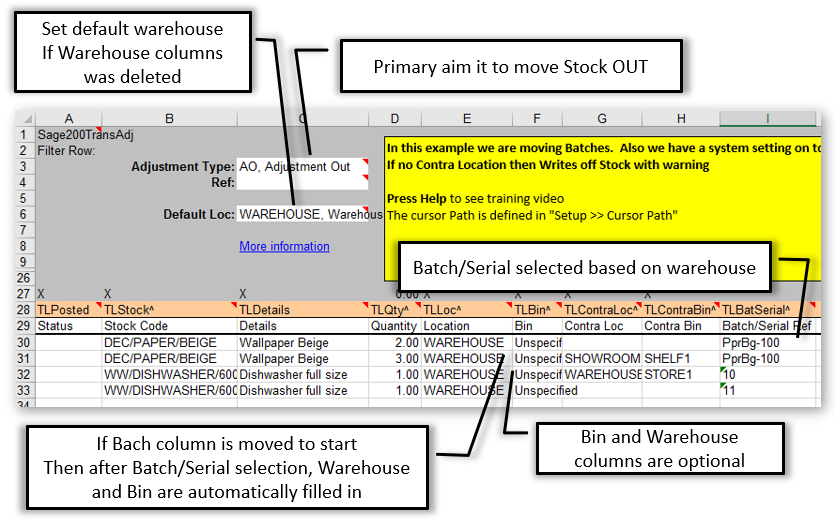
Sage 200 Stock Adjust with Batches/Serial items
In the above example the first line is writing off 2 items in a batch 'PprGb-100' since we have no contra location in cols G and H. The Adjustment OUT works best for Batches/Serial items
The second line moves 3 from WAREHOUSE -> SHOWROOM for batch PprGb-100
The third line moves serial no 10 to new location WAREHOUSE, and Bin 'STORE1'. STORE1 is created automatically if allow by a system setting.
The fourth line writes off serial item 11 in WAREHOUSE
If the Bin columns are removed from the sheet, then 'Unspecified' Bin is always used.
The order of the columns can be rearranged. For instance, if the TLBatSerial column is move to before the location selection, then search will allow selection of Batches/Serial regardless of location. After selection the locations, and Bin will be filled in.
Template Structure for Transaction Data
The template must have tag ‘Sage200TransAdj’ in the comment of cell A1 to instruct PostTrans that we are interested in importing Transactions, and that the sheet is a PostTrans Template. Pressing Import or Extract on a blank sheet will either open an existing example or create basic template for you to customise.
On-line Training video of how all this works
Common Features
In-Cell Searching
Any Tag ending with ^ will have a In-cell search facility to look up associated values. Use SPACE + TAB to see all values, or SPACE and TEXT to perform a text search on description. These are returned to the cell as "CODE, DESCRIPTION". PostTrans only uses the CODE and ignores the comma and anything after it, thus data from a field would only need the CODE part of the data if from an external imported file.
In-cell Searching can be turned off by removing the ^ from the end of the tag name, or name in first line of comment (Header cells) to disable in-cell searching for a single column, or header cell. All in-cell searching can be turned off in Setup. In-cell searching.
Cursor Path
The path the cursor takes through the sheet, when entering data manually, can also be easily defined in Setup. See Set Cursor Path
Importing the Data
Simply press the Import button to validate and import the data into Sage 200. PostTrans will read the Header cells and then process the rows of data until TLStock column contains no data. The Sage Company imported into can be set in the Setup window.
PostTrans ONLY edits those fields listed on the sheet when importing, thus any existing values, on a record, are unaffected. New records may have default values for certain fields.
Validation
Any values and associated codes will be invalid during import. The cursor will be moved to highlight any problems in data.
POSTED Document Ref
After Posting a transaction, PostTrans will write "POSTED:" and the transaction reference number in column A (tag TLPosted). Lines marked as "POSTED" are then ignored by PostTrans when re-posting. So, transactions cannot easily be posted twice. So the transaction can not easily be posted twice. The user would have to remove "POSTED" from column A in order to post the transaction a second time. The user would have to remove "POSTED" from column A, to post the transaction a second time.
Confirmation before Posting Transaction
Just before posting the validated transaction, PostTrans will optionally show a transaction summary for the user to validate. This can be turned off in Setup window.
File Import Button
This can be enabled in Setup to easily import CSV, or fixed length files, into sheet for importation. Formula can also be added, or macros/VBA to manipulate this data before importation. Import from CSV file.
Clear Button
The Clear button will clear all values on the sheet, according to the row just above the tag row, and copy down any formula. Clear Transaction and copy down formula
Evaluation and License
This functionality will work with Sage Demo data without a license. A license is required to import into any other Sage Company.
A subscription be purchased, and cancel on-line at any time very easily.
Pricing
Restrictions
- Locations must be turned on.
What else can I do?
Other Sage 200 Extract/Import types
Frequently Asked Questions?
Got another question? It may well be covered on our Frequently Asked Questions page.
Demonstration Video
| 0:00 | Video Introduction | |
| 1:10 | Product Demo | |
| 2:00 | Moving stock into other location | |
| 2:30 | Writing off stock | |
| 3:30 | Posting the Stock adjustment with conformation | |
| 5:40 | Extracting multiple stock items to create adjustment quick template Pro |
Download Stock Adjustment Template
see 'OUT' and 'Batches OUT' sheet
To use the template, with Sage 200, install PostTrans. Download
Trial with Sage demo company. Purchase a month subscription for Live Sage Company. Price
Watch the On-line Training course on how to use and customise the templates.
Product Adjustment Import Options
Nominal Import has the following options, which are accessible by pressing the Setup button on the toolbar:
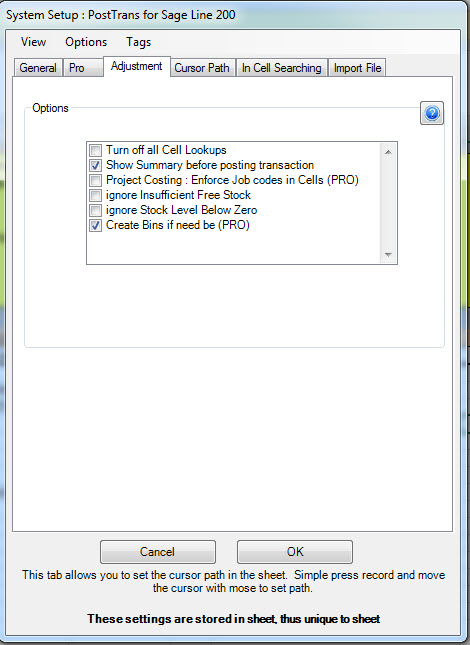
Simple Sage 50 Stock Adjustment in Excel
| Option | Description |
|---|---|
| Turn off all Cell Lookups | This option turns all in cell searching ON/OFF more about Sage Line 50 Related Code Search |
| Show Summary before posting | This turns on and off Journal summary before posting. See below… |
| Enforce Project and Cost Code entry | This makes sure that the user specifies Job Costing codes, other wise they are optional Pro |
| Create Bins if need be | Allow the creation of Bin on the fly if don't exist Pro |
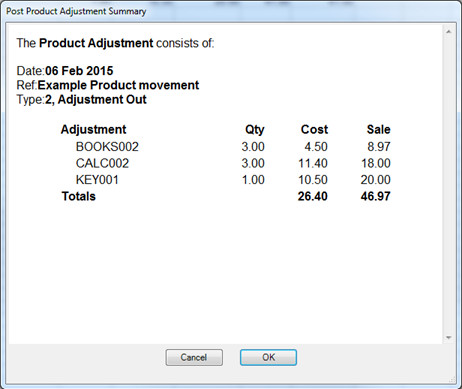
Confirmation window showing summary of transaction.
You would want to turn the summary off if you are importing a large number of Adjustment lines from an external file.
If Project codes are entered in Stock Adjustment then confirmation will show a summary of Project Costing figures posted.
PostTrans Tags which map to Sage 200
Not all of these tags/columns are needed. The table below lists the required and recommended:
|
Tag Name |
Data Type |
Description |
|
Header Values: |
||
|
THAdjType^ |
Text 2 HeadOnly XML |
Type of Adjustment, basically sets the IN/OUT for TLQty |
|
THAccRef^ |
Text 8 Head Chg XML |
Customer/Supplier Ref. Must be set to Customer or Supplier for Stock adjustment type FO or GR |
|
THTranRef |
Text 20 Head Chg XML |
Transaction Reference, overides vallue set on Header |
|
THTranRef2 |
Text 20 Head Chg XML |
Transaction Reference2, overides vallue set on Header |
|
THTransDate |
Date Head Chg XML |
Transaction Date, overides the date set on Header |
|
Project (Pro): |
||
|
THProjectCode^ |
Text 30 Head Pro XML |
Project if Project stock issue. Can be Projectcode/Phase |
|
TLProject^ |
Text 12 Pro XML |
Project |
|
TLPhaseFilter^ |
Text 30 Pro XML |
Phase Filter. If project has duplicate Project items in different phases, this can direct to correct Phase |
|
TLCostCode^ |
Text 8 Pro XML |
Cost Code |
|
Important Fields: |
||
|
TLPosted |
Text Req |
Returns `POSTED` if Trans line has been posted and will be ignored if `POSTED` (required). Also reports errors/warnings in data row |
|
Adjustment Lines: |
||
|
TLStock^ |
Text 30 EOF Req XML |
Product Description. PostTrans stops importing after finding 5 consecutive blank cells. |
|
TLDetails |
Text 60 XML |
Details |
|
TLQty^ |
Double Req XML |
Quantity, ignores any lines with zero qty. This allows a long product list to be listed, and user simply edit a qty to book IN/OUT |
|
Location: |
||
|
TLLoc^ |
Text 20 XML |
Location. DoubleClick to see Stock Levels |
|
TLBin^ |
Text 20 |
Bin Location. Set to 'Unspecified' if column not in template.. DoubleClick to see Stock Levels |
|
TLBinSetAllocP |
Integer |
Bin Allocation Priority 1-9 if created (settings allows this in setup button) |
|
TLBinSetPrim |
Yes/NoTF |
Y Set Primary Bin if created (settings allows this in setup button) |
|
Contra Location: |
||
|
TLContraLoc^ |
Text 20 XML |
Contra Location, Use this to move stock between locations. Set type to "1,Adjustment In" makes TLQty,TLLoc,TLBin the IN Qty/location, and thus a Ref in TLMoveLoc,TLMoveBin specify the Location and Bin to move stock from. |
|
TLContraBin^ |
Text 20 XML |
Contrat Bin Location. Set to 'Unspecified' if column not in template. |
|
Value: |
||
|
TLCostPrice |
Currency Read XML |
Cost Price |
|
TLTotCost |
Currency Read |
Total Cost Price of line |
|
TLStdPrice |
Currency Read XML |
Std Sales Price |
|
TLTotSales |
Currency Read |
Total Sales Price for line |
|
TLTotContraCost |
Currency Read |
Total Contra Cost Price of line |
|
Stock Record (PostBack): |
||
|
StBinQtyFree |
Double Read |
Product Qty free, updated when stock code entered |
|
StBinQtyInStock |
Double |
Product Qty In stock, updated when stock code entered |
|
StBinQtyContraFree |
Double Read |
Product Qty free in contra Location, updated when stock code entered. This figure is used when using to do stock take, and is compared with TLQty |
|
StBinQtyContraInStock |
Double Read |
Product Qty In stock contra Location, updated when stock code entered |
|
StBinContraLastCost |
Text 16 Read |
Last cost of Contra Bin |
|
StStockUOM^ |
Text 20 Read |
Returns the UOM for stock item |
|
Batch/Serial Details: |
||
|
TLSellByDate |
Date Pro XML |
Sell lBy Date |
|
TLUseByDate |
Date Pro XML |
Use By Date |
|
TLBatSerial^ |
Text 30 Pro XML |
Batch Ref or for Serial then a comma seperated list or list with each on new line. DoubleClick to see Stock Levels |
|
TLBatSerRef |
Text 30 Pro XML |
Batch/Serial Ref. Searching is provided on AO when location/BIN has been entered |
|
TLSerBatType |
Text 10 Read |
Returns Ser/Bat if a Serial No/Batch traceable item |
|
TLSupplier^ |
Text 20 Read |
Batch/Serial Supplier |
|
Other: |
||
|
THWoCategory^ |
Text 20 Head Chg XML |
Write Off Category |
|
Analysis Codes: |
||
|
TLAnal1^ |
Text 60 XML |
Analyisis code 1 - Setup View >> Analaysis code menu option will list mapping numbers and values |
|
TLAnal2^ |
Text 60 XML |
Analyisis code 2 - Setup View >> Analaysis code menu option will list mapping numbers and values |
|
TLAnal3^ |
Text 60 XML |
Analyisis code 3 - Setup View >> Analaysis code menu option will list mapping numbers and values |
|
TLAnal4^ |
Text 60 XML |
Analyisis code 4 - Setup View >> Analaysis code menu option will list mapping numbers and values |
|
TLAnal5^ |
Text 60 XML |
Analyisis code 5 - Setup View >> Analaysis code menu option will list mapping numbers and values |
|
TLAnal6^ |
Text 60 XML |
Analyisis code 6 - Setup View >> Analaysis code menu option will list mapping numbers and values |
|
TLAnal7^ |
Text 60 XML |
Analyisis code 7 - Setup View >> Analaysis code menu option will list mapping numbers and values |
|
TLAnal8^ |
Text 60 XML |
Analyisis code 8 - Setup View >> Analaysis code menu option will list mapping numbers and values |
|
TLAnal9^ |
Text 60 XML |
Analyisis code 9 - Setup View >> Analaysis code menu option will list mapping numbers and values |
|
TLAnal10^ |
Text 60 XML |
Analyisis code 10 - Setup View >> Analaysis code menu option will list mapping numbers and values |
|
TLAnal11^ |
Text 60 XML |
Analyisis code 11 - Setup View >> Analaysis code menu option will list mapping numbers and values |
|
TLAnal12^ |
Text 60 XML |
Analyisis code 12 - Setup View >> Analaysis code menu option will list mapping numbers and values |
|
TLAnal13^ |
Text 60 XML |
Analyisis code 13 - Setup View >> Analaysis code menu option will list mapping numbers and values |
|
TLAnal14^ |
Text 60 XML |
Analyisis code 14 - Setup View >> Analaysis code menu option will list mapping numbers and values |
|
TLAnal15^ |
Text 60 XML |
Analyisis code 15 - Setup View >> Analaysis code menu option will list mapping numbers and values |
|
TLAnal16^ |
Text 60 XML |
Analyisis code 16 - Setup View >> Analaysis code menu option will list mapping numbers and values |
|
TLAnal17^ |
Text 60 XML |
Analyisis code 17 - Setup View >> Analaysis code menu option will list mapping numbers and values |
|
TLAnal18^ |
Text 60 XML |
Analyisis code 18 - Setup View >> Analaysis code menu option will list mapping numbers and values |
|
TLAnal19^ |
Text 60 XML |
Analyisis code 19 - Setup View >> Analaysis code menu option will list mapping numbers and values |
|
TLAnal20^ |
Text 60 XML |
Analyisis code 20 - Setup View >> Analaysis code menu option will list mapping numbers and values |
|
Default Locations: |
||
|
THDefaultLoc^ |
Text 20 HeadOnly Chg |
Setting this will set the default location for TLLoc on each line |
|
THDefaultContraLoc^ |
Text 20 HeadOnly |
Setting this will set the default location for TLContraLoc on each line |
|
Header:Before Posting: |
||
|
THBefSWCompany^ |
Text 6 Head Chg Pro |
This will cause PostTrans to change company before posting if different from current Sage Line 50 Company. Thus can be user to post transactions into different companies, thus intercompany transactions are possible. It uses a 6 letter company code, which found by pressing the Select Company button in system setup. |
|
THBefDisplayMess |
Text 60 HeadOnly |
If contains value, then this text is displayed, and import cannot take place until this text if clear. Thus you can your own formula, macro or VBA code to stop import until a certain condition. |
|
THBefDisplayMessYN |
Text 60 HeadOnly |
If contains value, then this text is displayed. Asks Yes/No to continue |
|
Header - After Posting: |
||
|
THAftProcessSheet |
Text 60 HeadOnly Pro |
After posting this sheet, switch to work book with this name, and post that. Allows back to back purchase orders, or multiple company transfers. PRO |
|
THAftSwitchSheet |
Text 60 HeadOnly Pro |
After posting this sheet, switch to work book with this name PRO |
|
Header - After Save: |
||
|
THAftSavePATH |
Text 60 HeadOnly Pro |
If THAftSavePATH and THAftSaveFilename specified, will save as PATH + ‘\YYYMM\’ + Filename + "_0000.xls". YYYMM can be overridden with value in THSaveSubDirectory cell. |
|
THAftSaveSubDir |
Text 60 HeadOnly Pro |
See THAftSavePATH |
|
THAftSaveFilename |
Text 60 HeadOnly Pro |
See THAftSavePATH. Example ‘ABAP01’ will saveas ABAP01_0001.xls. |
|
Import File: |
||
|
THImportFullName |
Text 500 HeadOnly |
Full PATH and Filename of the file just imported using the Import button. This is required if you set the directory to move file after posting transaction. |
|
THImportFileName |
Text 500 HeadOnly |
Filename of the file just imported using the Import button |
Req = Field is required EOF = End of file, Stop when no more values
XML = Un-attended PostTrans XML API for Sage 200
Head A header tag can be used in header section, before row 30, of the transaction template. Or in the rows data of data, below row 30, of the template like a traditional CSV importer.
With data type Yes/No fields, if cell starts with 'y' or 'Y' is taken as TRUE
Where ^ denotes a In Cell Code Search, delete ^ at end of tag, to turn off code search
All Text fields are trimmed (spaces before) by default. Add ' to the end of the tag name to stop this.
.
Related Example Sheets
You can easily access the example sheets by pressing Help button, on the PostTrans Toolbar to access these related examples, or downloading them from the links below.
To use the template, with Sage 200, install PostTrans. Download
Trial with Sage demo company. Purchase a month subscription for Live Sage Company. Price
Watch the On-line Training course on how to use and customise the templates.
Transaction Data - Stock Adjustments: |
||
| Download Sage200TransADJ.xlsx | ||
|
Stock Adjustment OUT with no Bins |
Sheet:'OUT No Bins' |
|
|
Stock Adjustment Write Off |
Sheet:'Write Off' |
|
|
Stock Adjustment Goods Return |
Sheet:'Goods Return' |
|
|
Stock Adjustment Free of Charge |
Sheet:'Free Of Charge' |
|
|
Stock Adjustment OUT |
Sheet:'OUT' |
|
|
Stock Adjustment IN |
Sheet:'IN' |
|
|
Stock Adjustment OUT with Batch and Serial |
Sheet:'Batches OUT' |
|
|
Stock Adjustment IN with Batch and Serial |
Sheet:'Batches IN' |
|
Bins: |
||
| Download Sage200bins.xlsx | ||
|
Locations and Bins |
Sheet:'Bins' |
|
|
Stock Take Locations and Bins with Serial and Batches |
Sheet:'Bins Stock Take Batch Serial' |
|
|
Stock Take Locations and Bins |
Sheet:'Bins Stock Take' |
|
|
Stock movement between Locations and Bins |
Sheet:'Bins Movement' |
|