Home›Xero›Xero:Import Xero Receipts/Payments and Allocate/Match to Invoices in Excel
Xero:Import Xero Receipts/Payments and Allocate/Match to Invoices in Excel
All of the following functionality requires the Pro version of PostTrans.
Import Xero Sales Receipts/Payments
A more recent version, not shown on any of the screenshots/video below, has an additional tag in the Header section of the template to set the Process Type to "R" for Receipts or "P" for Payments.
PostTrans imports Sales Receipts, or Payments, in two different modes, each discussed below with demonstration videos:
1) Manual Allocation Mode
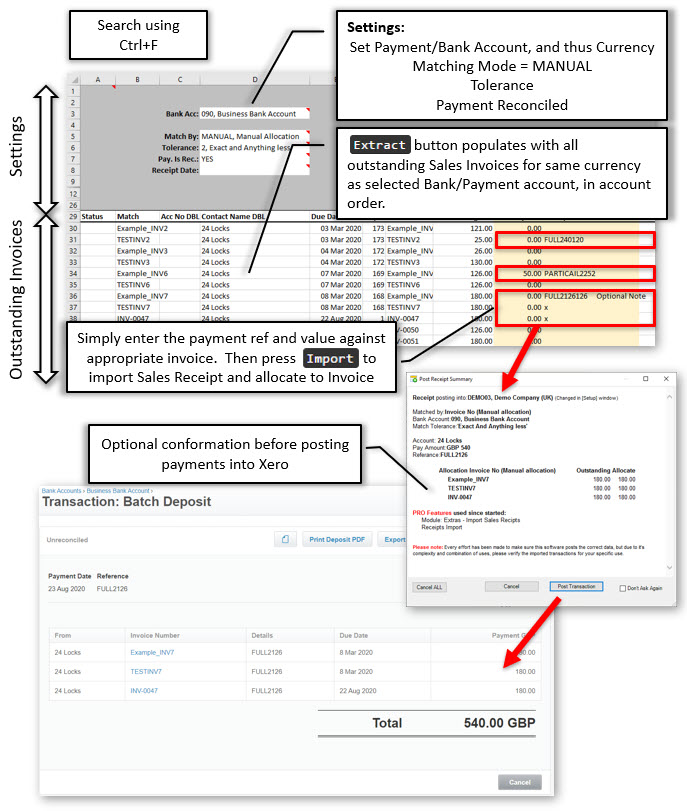
Match by:MANUAL, Manual Allocation
See example "Import and Match Sales Receipts/Payments"
Pressing Extract button will populate the Excel sheet with all Outstanding Invoices in Xero. The template columns can be rearranged, additional functionality added or items removed to for fill your needs.
TLRcMatch column is populated with the Invoice number, and when Import is pressed the sheet is scanned for payment values. If this cell contains a value then, a Sales Receipt is imported for the value and entered reference. If just a reference is entered then the full value of the outstanding invoice is allocated, plus multiple invoices can be allocated to single payments.
Overpayment
If allowed by the "Tolerance" setting (cell D7), set to "Allow Overpayments" then any values over the invoice value will be imported as an overpayment in Xero against the customer account, for later allocation.
Another sheet "OverPayment Alloc" will read all overpayments using the Extract button. Outstanding Invoices are then matched to overpayments. Import is then pressed to import these allocations.
Sheet "Import Overpayments" separately imports overpayments against customer accounts if needed.
Please see the demo video below for more details, and the overpayments further down the page.
Demonstration Video - Manual Entry
Import Xero Receipts/Payments and Allocate/Match to Invoices in Excel 1/2
0:00
Open Example included with PostTrans for Xero
1:10
Explanation of Template
2:00
Bank Accounts and Currency
3:20
Match by Options
4:30
Extract Xero Outstanding Invoices
5:00
Explanation of Xero Data Extracted
5:30
How to enter Xero Payment Allocations
6:45
Adding a Note against Xero Receipt
7:55
Import Xero Payments and Allocate against Invoices
To use the template, with Xero, install PostTrans. Download
Trial with Sage demo company. Purchase a month subscription for Live Sage Company. Price
Watch the On-line Training course on how to use and customise the templates.
2) Automatic Allocation Mode
Match by not set to:MANUAL, Manual Entry
See example "Import and Match Sales Receipts/Payments from CSV file"
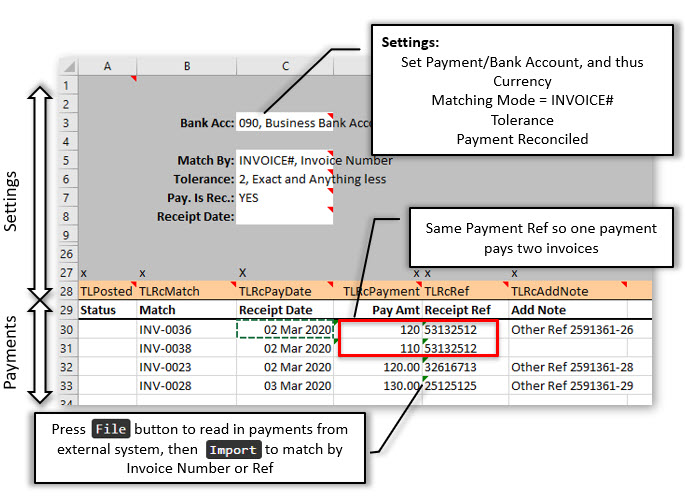
In this mode, Xero Sales Receipts/Payment are imported into Xero, and are matched to Outstanding Sales Invoice by a matching value in TLRcMatch Column. The value in the TLRcMatch can be matched by Invoice Number, Reference, or Oldest matching value on account ledger.
This is therefore ideal for users who want to import Invoice from an external system, and at a later date import the Sales Receipts, matched on a matching value on the original invoice.
In the above example we can see we can allocate one payment to multiple invoices simply by using the same Payment Ref. See video below for demo.
Debtors List
To aid diagnosis, if a reference does not match PostTrans will optionally open a new sheet showing the outstanding transactions found in Xero and all references on those transactions. This can also be seen by pressing the Extract button on the Sales Receipt template.
Overpayment
If allowed by the "Tolerance" setting (cell D7), set to "Allow Overpayments" then any values over the invoice value will be imported as an overpayment in Xero against the customer account, for later allocation.
Another sheet "OverPayment Alloc" will read all overpayments using the Extract button. Outstanding Invoices are then matched to overpayments. Import is then pressed to import these allocations.
Demonstration Video - from File
The video shows how to use PostTrans Pro for Xero, to import Sales Receipts from within Excel, which relate to existing Sales Invoices in Xero. These are allocated to the invoice by a matching unique reference, which is in the Invoice data. In our example the Invoice Number.
This would be used, in a scenario where the Invoice data has originated from an external source, website or bespoke program. And at a later date the receipt information is generated by same program, which needs matching off against the invoices in the accounts.
Import Xero Receipts/Payments and Allocate/Match to Invoices from CSV file in Excel 1/2
0:00
Open Example included with PostTrans for Xero
1:00
Explanation of Template
1:30
Importing into Xero Example Invoices
3:00
Reading CSV file using File button
3:30
Changing options
5:50
Optionally add a note to payments
6:00
Allocate Payment in Xero from the CSV file
7:00
Showing the proof in Xero
7:40
Options in Setup - Turn off Conformation
8:00
File import options
Demonstration Video - Overpayments and Auto-allocation
The video shows PostTrans for Xero importing Xero Receipts/Payments and Overpayments with auto allocation into Xero in Excel save a lot of time and money.
Import Xero Receipts/Overpayments and Auto Match to Invoices in Excel
To use the template, with Xero, install PostTrans. Download
Trial with Sage demo company. Purchase a month subscription for Live Sage Company. Price
Watch the On-line Training course on how to use and customise the templates.
Requirements
Requires PostTrans Pro.
The invoice and payment must use the same currency.
Payments cannot be over-allocated.
Optionally, only match when the values agree.
Available Tags
Tag Name
Data Type
Description
Important Fields:
TLPosted
Text Req
Returns `POSTED` if Trans line has been posted and will be ignored if `POSTED` (required). Also reports errors/warnings in data row
Posting Settings:
THBankAcc^
Text Req, HeadOnly
Bank account or Account marked 'Enable Payments'. Only transactions of the same currency will be processed. In Cell Searching values in table ACCCODEPAYMENT
THMatchBy^
Text 60 Req, HeadOnly
Match by x when looking for invoice to allocate too in field TLMatch In Cell Searching values:Match BY MANUAL, Manual Allocation VALUE, Account Oldest Matching Value REF, Reference INVOICE#, Invoice Number
THProcessType^
Text 60 Req, HeadOnly
Process Receipts or Payments In Cell Searching values:Process Type R, Receipts P, Payments
THTolerance^
Integer Req, HeadOnly
Match Tolerance In Cell Searching values:Tolerance 1, Exact 2, Exact and Anything less 3, Allow Overpayments
THPayIsRec
Yes/NoTF Req, HeadOnly
Payment is Reconciled.
THRcPayDate
Date HeadOnly
Date paid, if not specified on line (tag TLRcPayDate). If not specified then will use todays date
Receipts Lines:
TLRcRef
Text 18 Req
Set Referance of Receipt. Repeat Ref or 'X' to continue allocation to one recipt
TLRcMatch
Text 60 EOF
Use this value to search for matching Invoice, allocate payment to this matched invoice
TLRcPayment
Currency Req
Payment Amount, zeros are ignored.
TLRcDetails
Text 60
Details. If not specified will be `Sales Receipts`
TLRcPayDate
Date
Date paid, blank defaults to today
TLRcCode
Text 60
Code (NZ only)
TLRcParticulars
Text 60
Particulars (NZ only)
TLRcAddNote
Text 100
Add note to Payment
Over Payments:
THExtractMode^
Integer HeadOnly
When the Extract button is pressed, include overpayments and allocate them in the debtors list, or simply list and allocate the overpayments. Must have TLOvrPay and TLOverPayID in sheet In Cell Searching values:Extract Mode 1, Debtors Invoices Only 2, Debtors Invoices and Allocate OverPayments 3, Just Allocate OverPayments
TLOvrPay
Double Read
If allocating with Match Tolerance set to "Allow Overpayments," then any over-allocated value is written in these columns to be handled by the user if need be by filtering etc.
TLOverPayID
Text 60 Read
Used to store the ID of overpayments transaction dueing allocation
TLOverPayContact^
Text 60
To create an overpayment without an invoice allocation, simply enter the account, amount, and reference to create an overpayment on the account. In Cell Searching values in table CONTACTCUST
Contact Info:
TLCoAccNo
Text 8
Contact Account Number
TLCoName
Text 60
Contact Name
Ready Only Tags:
TLInvOut
Double Read
When used in Manual Mode, will be populated with Outstanding amount on Extract
TLInvDate
Date Read
Date of invoice
TLInvDateExp
Date Read
When used in Manual Mode, will be populated with Expected Date on Extract
TLInvDateDue
Date Read
When used in Manual Mode, will be populated with Due Date on Extract
TLInvCredit
Double Read
When used in Manual Mode, will be populated with Credited amount on Extract
TLInvGross
Double Read
When used in Manual Mode, will be populated with Gross amount on Extract
TLInvTax
Double Read
When used in Manual Mode, will be populated with Tax amount on Extract
TLInvCur
Text 3 Read
Currency Number
TLInvNo
Text 20 Read
Reference2
TLInvRef
Text 20 Read
Reference
Header:Before Posting:
THBefDisplayMess
Text 60 HeadOnly
If contains value, then this text is displayed, and import cannot take place until this text if clear. Thus you can your own formula, macro or VBA code to stop import until a certain condition. Validating Transaction before posting
After posting this sheet, switch to work book with this name, and post that. Allows back to back purchase orders, or multiple company transfers. PRO Posting multiple sheets
If THAftSavePATH and THAftSaveFilename specified, will save as PATH + ‘\YYYMM\’ + Filename + "_0000.xls". YYYMM can be overridden with value in THSaveSubDirectory cell. more about saving
See THAftSavePATH. Example ‘ABAP01’ will save as ABAP01_0001.xls. more about saving
Import File:
THImportFullName
Text 500 HeadOnly
Full PATH and Filename of the file just imported using the Import button. This is required if you set the directory to move file after posting transaction. File Import instructions
Req = Field is required EOF = End of file, Stop when no more values
Head A header tag can be used in header section, before row 30, of the transaction template. Or in the rows data of data, below row 30, of the template like a traditional CSV importer.
With data type Yes/No fields, if cell starts with 'y' or 'Y' is taken as TRUE
Where ^ denotes a In Cell Code Search, delete ^ at end of tag, to turn off code search
All Text fields are trimmed (spaces before) by default. Add ' to the end of the tag name to stop this.
Related Example Sheets
You can easily access the example sheets by pressing Help button, on the PostTrans Toolbar to access these related examples, or downloading them from the links below.

 EXCEL · XLSX